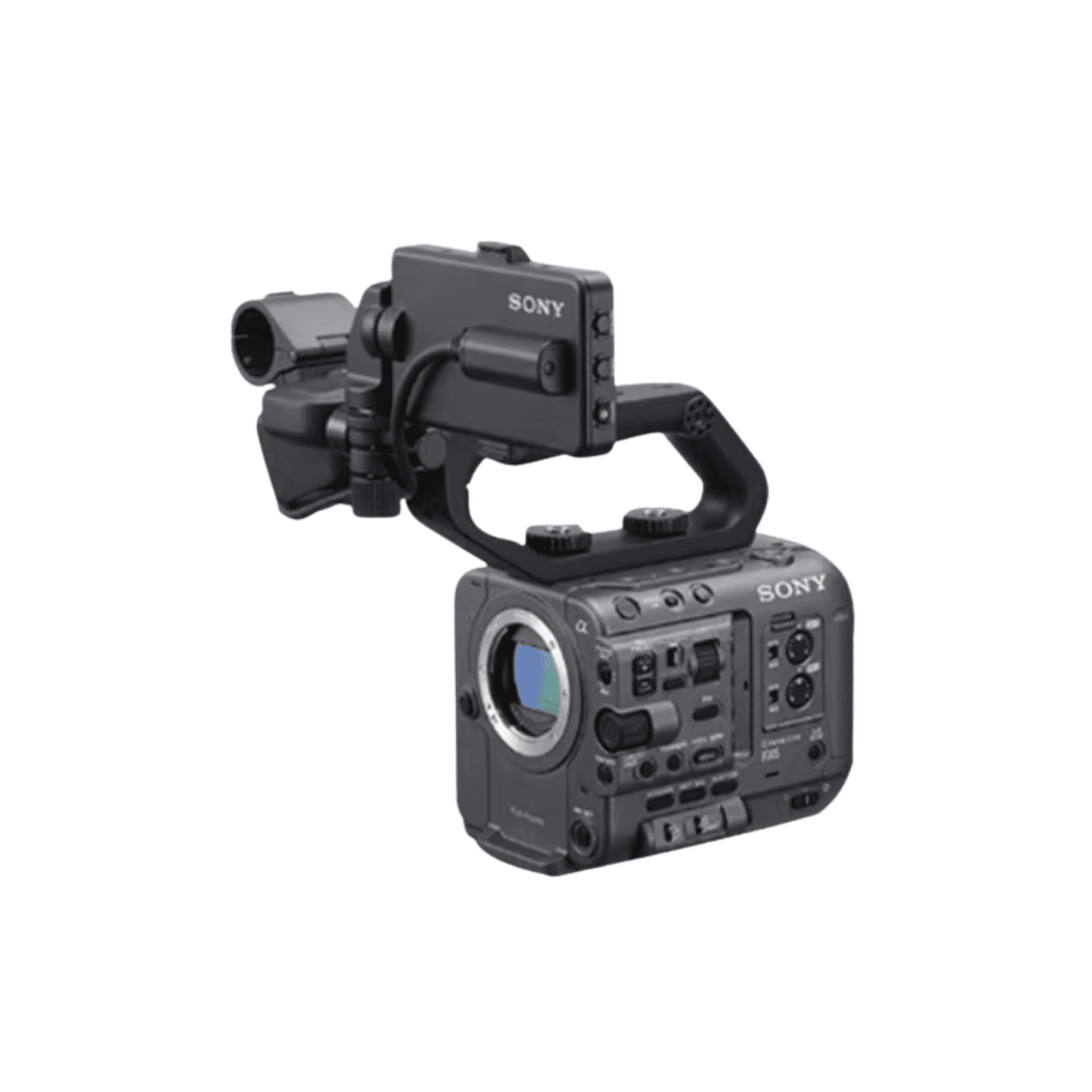
Dual-Camera Conference Plan for Screen and Presenter: Framing, Occlusion, Audio and Backup
A field-derived plan for assigning a screen camera and presenter camera, reducing audience occlusion, protecting power and backing up each recording day.
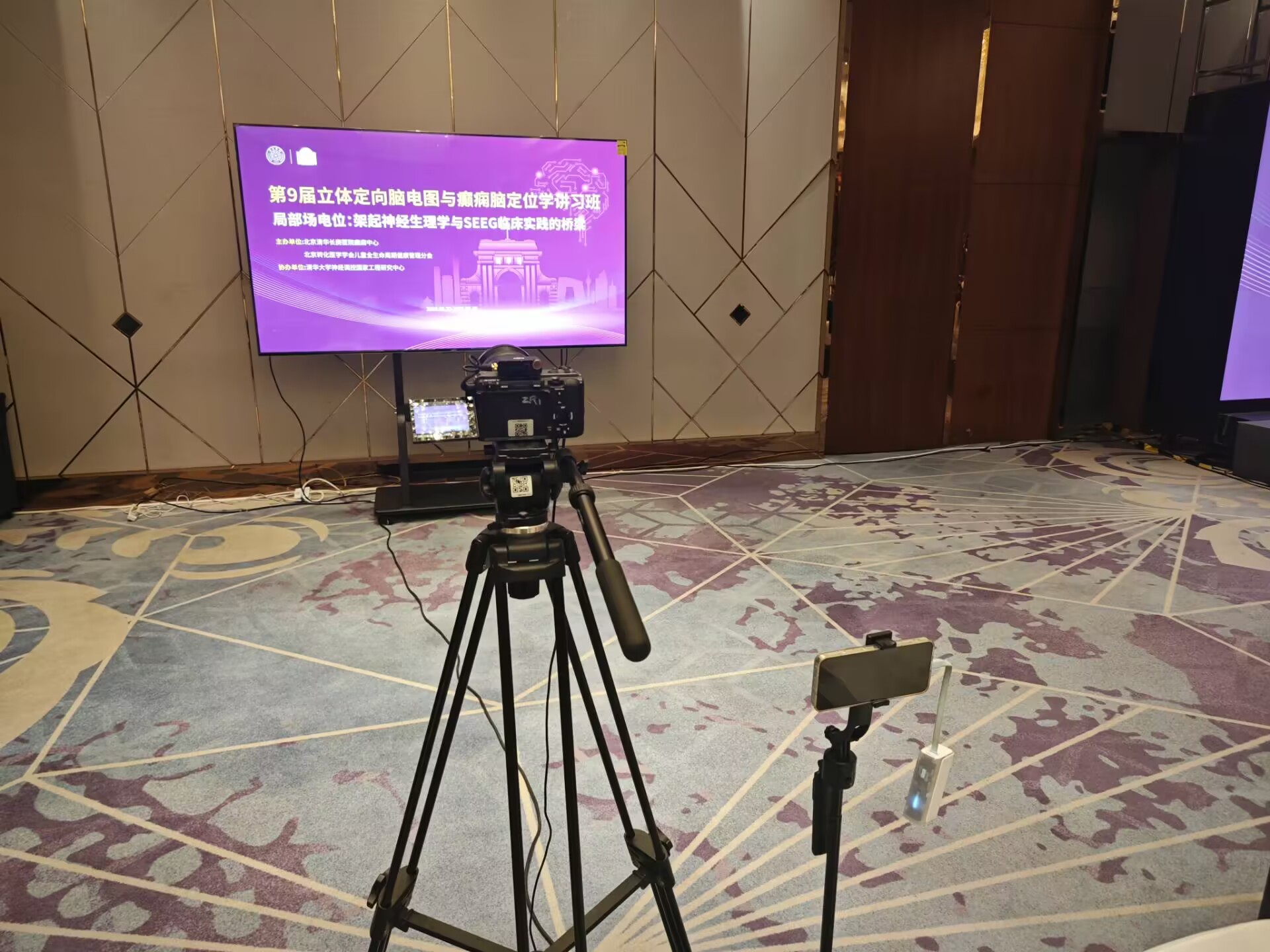
Project-site image showing equipment placement and working conditions.
Direct answer
For a conference that must preserve both slides and speaker, give each locked camera one job, then protect content with separate audio, safe placement and daily backups.
01
Give the two cameras different jobs
In this case one locked camera covered the presentation screen and another recorded the presenter from the rear of the room. Lens choice follows screen size, distance and seating layout—not a copied focal length.
Work backwards from delivery: test text readability, flicker and highlights on the screen camera, then check presenter movement and lectern obstruction on the second.
Checklist
- ✓Screen readability
- ✓Presenter movement
- ✓Lectern obstruction
- ✓Refresh and exposure test
02
Treat audience movement as a design input
Rear cameras can be blocked by standing or walking attendees. Raising and tightening the presenter shot helped in this project, while the screen camera used a lower-traffic zone.
Create a safety zone without blocking exits, secure cables, and protect unattended cameras from bumps that can cause framing shifts, power loss or file damage.
Checklist
- ✓Route simulation
- ✓Tripod safety zone
- ✓Cable securing
- ✓Unattended-camera protection
03
Verify audio separately from picture
Conference value often depends on intelligible speech. Wireless audio can help, but monitor noise, clothing rub and power before and during recording.
A good frame is not enough: periodically confirm each body is recording, meters are active, power is secure and media capacity remains.
Checklist
- ✓Speaker sound check
- ✓Headphone monitoring
- ✓Record-status checks
- ✓Power and media log
04
Reduce data risk one day at a time
This four-day project offloaded footage daily. Create a folder per day and confirm at least two readable copies before reusing media.
Do not treat a completed progress bar as verification. Open sample files and log camera, date, card and any abnormal segment.
Checklist
- ✓Daily folders
- ✓Two copies
- ✓Playable sample check
- ✓Card and camera log
Frequently asked questions
Does conference recording always need two cameras?
No. Two cameras fit deliveries that need separate screen and presenter coverage. A single picture or direct slide feed changes the plan.
Why can a locked camera still fail?
Audience contact, loose cables, power loss, full media and accidental stops remain possible. Locked cameras still need protection and periodic checks.
Why back up every day?
Daily backups limit the impact of card damage or operator error and reveal problems earlier.